GET Community ACCESS QUICK

Join the GamesRadar community for quick access. Enter your email below and we'll send confirmation, and sign you up to our newsletter.

By submitting your information you agree to the Terms & Conditions and Privacy Policy and are aged 16 or over.

Welcome to GamesRADAR+ Community !
Hi ,

Your membership journey starts here.

Keep exploring and earning more as a member.

MY ACCOUNT

Earn your first badge
Read 1 article to unlock your first badge.
Keep earning badges
Explore ways to get more involved as a member.
Latest Games News

Latest Games News

Breaking gaming news and updates

Read Now
Latest Games Reviews

Latest Games Reviews

Expert verdicts on the newest releases

Read Now

See what you’ve unlocked.

Explore your membership benefits.

Explore
Member Exclusives

Stay Ahead with GamesRadar+

Get the biggest gaming news, reviews, and releases straight to your inbox.

Explore
Sign Out

Most popular

The Black Friday deals everyone wants

Our readers' most-wanted products, with the price and the saving at a glance.

Prices were correct when checked but can change. We may earn a commission when you buy through these links.

See all Black Friday deals
GamesRadar+
US EditionUS CA EditionCanada UK EditionUK AU EditionAustralia
Sign in
  • View Profile
  • Sign out
  • Black Friday
    • Best Black Friday PS5 deals live
    • Best Black Friday Nintendo Switch 2 deals live
    • Best Black Friday board game deals live
    • Best Black Friday retro deals live
  • Games
    • Game Insights
      • Games News
      • Games Features
      • Games Reviews
      • Games Guides
      • Big in 2026
      • Big Preview
      • Future Games Show
      • Golden Joystick Awards
    • Genres
      • Action Games
      • RPGs
      • Action RPGs
      • Adventure Games
      • Third Person Shooters
      • FPS Games
    • Platforms
      • PS5
      • Xbox Series X
      • PC
      • Nintendo Switch
      • Nintendo Switch 2
      • Tabletop Gaming
    • Franchises
      • Grand Theft Auto
      • Pokemon
      • Assassin's Creed
      • Monster Hunter
      • Fortnite
      • Cyberpunk
      • Red Dead
      • The Elder Scrolls
      • The Sims
  • Entertainment
    • TV Shows
      • TV News
      • TV Reviews
      • Anime Shows
      • Sci-Fi Shows
      • Superhero Shows
      • Animated Shows
      • Marvel TV Shows
      • Star Wars TV Shows
      • DC TV Shows
    • Movies
      • Movie News
      • Movie Reviews
      • Big Screen Spotlight
      • Superhero Movies
      • Action Movies
      • Anime Movies
      • Sci-Fi Movies
      • Horror Movies
      • Marvel Movies
      • DC Movies
    • Streaming
      • Apple TV Plus
      • Disney Plus
      • Netflix
      • HBO
      • Amazon Prime Video
      • Hulu
    • Comics
      • Marvel Comics
      • DC Comics
  • Hardware
    • Insights
      • Hardware News
      • Hardware Reviews
      • Hardware Features
      • Buying Guides
    • Computing
      • Desktop PCs
      • Laptops
      • Handhelds
    • Peripherals
      • Headsets & Headphones
      • TVs & Monitors
      • Gaming Mice
      • Gaming Keyboards
      • Gaming Chairs
      • Speakers & Audio
    • Accessories & Tech
      • Gaming Controllers
      • Tech
      • SSDs & Hard Drives
      • VR
      • Accessories
      • Retro
    • Toys & Collectibles
    • Lego
    • Dungeons and Dragons
    • Merch
  • Video
    • Videos
    • GR+ Replay - Submit Your Clips
    • G+RLS Podcast
  • Edge
  • Newsletters
    • Quizzes
    • About Us
    • How to pitch to us
    • How we score
    • Newsarama
    • Retro Gamer
  • Home
  • Black Friday
    • View Black Friday
    • Best Black Friday PS5 deals live
    • Best Black Friday Nintendo Switch 2 deals live
    • Best Black Friday board game deals live
    • Best Black Friday retro deals live
  • Games
    • View Games
      • Games News
      • Games Features
      • Games Reviews
      • Games Guides
      • Big in 2026
      • Big Preview
      • Future Games Show
      • Golden Joystick Awards
      • Action Games
      • RPGs
      • Action RPGs
      • Adventure Games
      • Third Person Shooters
      • FPS Games
    • Platforms
      • View Platforms
      • PS5
      • Xbox Series X
      • PC
      • Nintendo Switch
      • Nintendo Switch 2
      • Tabletop Gaming
      • Grand Theft Auto
      • Pokemon
      • Assassin's Creed
      • Monster Hunter
      • Fortnite
      • Cyberpunk
      • Red Dead
      • The Elder Scrolls
      • The Sims
  • Entertainment
    • View Entertainment
    • TV Shows
      • View TV Shows
      • TV News
      • TV Reviews
      • Anime Shows
      • Sci-Fi Shows
      • Superhero Shows
      • Animated Shows
      • Marvel TV Shows
      • Star Wars TV Shows
      • DC TV Shows
    • Movies
      • View Movies
      • Movie News
      • Movie Reviews
      • Big Screen Spotlight
      • Superhero Movies
      • Action Movies
      • Anime Movies
      • Sci-Fi Movies
      • Horror Movies
      • Marvel Movies
      • DC Movies
    • Streaming
      • View Streaming
      • Apple TV Plus
      • Disney Plus
      • Netflix
      • HBO
      • Amazon Prime Video
      • Hulu
    • Comics
      • View Comics
      • Marvel Comics
      • DC Comics
  • Hardware
    • View Hardware
      • Hardware News
      • Hardware Reviews
      • Hardware Features
      • Buying Guides
      • Desktop PCs
      • Laptops
      • Handhelds
    • Peripherals
      • View Peripherals
      • Headsets & Headphones
      • TVs & Monitors
      • Gaming Mice
      • Gaming Keyboards
      • Gaming Chairs
      • Speakers & Audio
      • Gaming Controllers
      • Tech
      • SSDs & Hard Drives
      • VR
      • Accessories
      • Retro
    • Toys & Collectibles
    • Lego
    • Dungeons and Dragons
    • Merch
  • Video
    • View Video
    • Videos
    • GR+ Replay - Submit Your Clips
    • G+RLS Podcast
  • Edge
  • Newsletters
    • Quizzes
    • About Us
    • How to pitch to us
    • How we score
    • Newsarama
    • Retro Gamer
Trending
  • GTA 6 guides
  • GTA 6 review
  • GTA 6 News
  • Early Black Friday deals
  • Golden Joystick winners
  • RPG News
  • G+RLS Podcast
  • Win a GTA 6 collector's box
  • Deal of the Day
Jump To:
  • Without software
  • With software
  • My settings
GamesRadar+'s weekly hardware digest

Hardware nerds unite, sign up to our free tech newsletter for a weekly digest of the hottest new tech, the latest gadgets on the test bench, and much more from the team at GamesRadar+.


By submitting your information you agree to the Terms & Conditions and Privacy Policy and are aged 16 or over.

You are now subscribed

Your newsletter sign-up was successful


Want to add more newsletters?

GamesRadar+

Every Friday

GamesRadar+

Your weekly update on everything you could ever want to know about the games you already love, games we know you're going to love in the near future, and tales from the communities that surround them.

GTA 6 O'clock

Every Thursday

GTA 6 O'clock

Our special GTA 6 newsletter, with breaking news, insider info, and rumor analysis from the award-winning GTA 6 O'clock experts.

Knowledge

Every Friday

Knowledge

From the creators of Edge: A weekly videogame industry newsletter with analysis from expert writers, guidance from professionals, and insight into what's on the horizon.

The Setup

Every Thursday

The Setup

Hardware nerds unite, sign up to our free tech newsletter for a weekly digest of the hottest new tech, the latest gadgets on the test bench, and much more.

Switch 2 Spotlight

Every Wednesday

Switch 2 Spotlight

Sign up to our new Switch 2 newsletter, where we bring you the latest talking points on Nintendo's new console each week, bring you up to date on the news, and recommend what games to play.

The Watchlist

Every Saturday

The Watchlist

Subscribe for a weekly digest of the movie and TV news that matters, direct to your inbox. From first-look trailers, interviews, reviews and explainers, we've got you covered.

SFX

Once a month

SFX

Get sneak previews, exclusive competitions and details of special events each month!


Join the club

Get full access to premium articles, exclusive features and a growing list of member rewards.


An account already exists for this email address, please log in.
  1. Hardware
  2. Gaming Controllers

How to assign back buttons on a new pro controller, and the settings I recommend based on 20+ reviews

Guides
By Duncan Robertson
Published 25 December 2025

Did you get a new pro controller for Christmas? Here's how to get your money's worth

When you purchase through links on our site, we may earn an affiliate commission. Here’s how it works.

Nacon Revolution 5 Pro review image of the back buttons
(Image credit: Future / Duncan Robertson)
Jump To:
  • Without software
  • With software
  • My settings
  • Facebook
  • X
  • Pinterest
  • Flipboard
  • Email
  • Instagram
Share this article
0
Join the conversation
Follow us
Add us as a preferred source on Google
Subscribe to our newsletter

If you were lucky enough to unwrap a new gaming controller this Christmas, you may find that it has more buttons than you're typically used to. Whether it's for Switch 2, PS5, Xbox, or PC, the best controllers these days almost always sport some kind of additional buttons or paddles. Normally, these are back buttons integrated into the device's grips, but you might also find a few extra clickers next to the bumpers (R1, L1, RB, LB).

Each controller will have its own method of setting these buttons up the way you like them, but on the whole, assigning them can be done with the same basic process. I've reviewed loads of controllers during my time as the resident gamepad expert here at GamesRadar+, and setting up back buttons is the first thing I do when unboxing any review sample.

Before we get started, my first pro tip is to seek out the small instruction pamphlet that will have come in your controller's box. That'll provide you with the specifics you need to set up your particular controller. Regardless of whether or not you've used back buttons before, I'll keep this guide fairly simple, because the truth of it is that the process isn't very complicated. If you don't know what to use the back buttons for, I've even supplied my own personal back button preferences and recommendations down below.

Latest Videos FromGamesRadar+
Watch full video here:

Setup 1: No software

A reviewer showing the back of the GameSir Cyclone 2

(Image credit: Future / Duncan Robertson)

The majority of controllers won't require you to use companion software or a mobile app to set up their extra buttons. A couple do, but we'll get to that later. A lot of controllers don't require it, but will have software you can use if you prefer.

If you have a controller from GameSir, PowerA, Turtle Beach, Victrix (PDP), Razer, or 8BitDo, you won't need to dabble in software to set up back buttons, but each brand will have its own variation on the steps I'm about to go through.

You may like
  • A Control Resonant marketing image edited next to a Nacon Revolution X Unlimited controller Your pro controller's back buttons could be the answer to Control Resonant's spongy enemies
  • JSAUX Voidjoy Elite Extender back button attachment on a Pro Controller held in front of Legend of Zelda Ocarina of Time Remake The Voidjoy Elite Extender only makes sense for Pro Controller purists
  • Five different gaming controllers for PC scattered around a desktop surface The best PC controller for gaming 2026

Step 1: Find your controller's function button

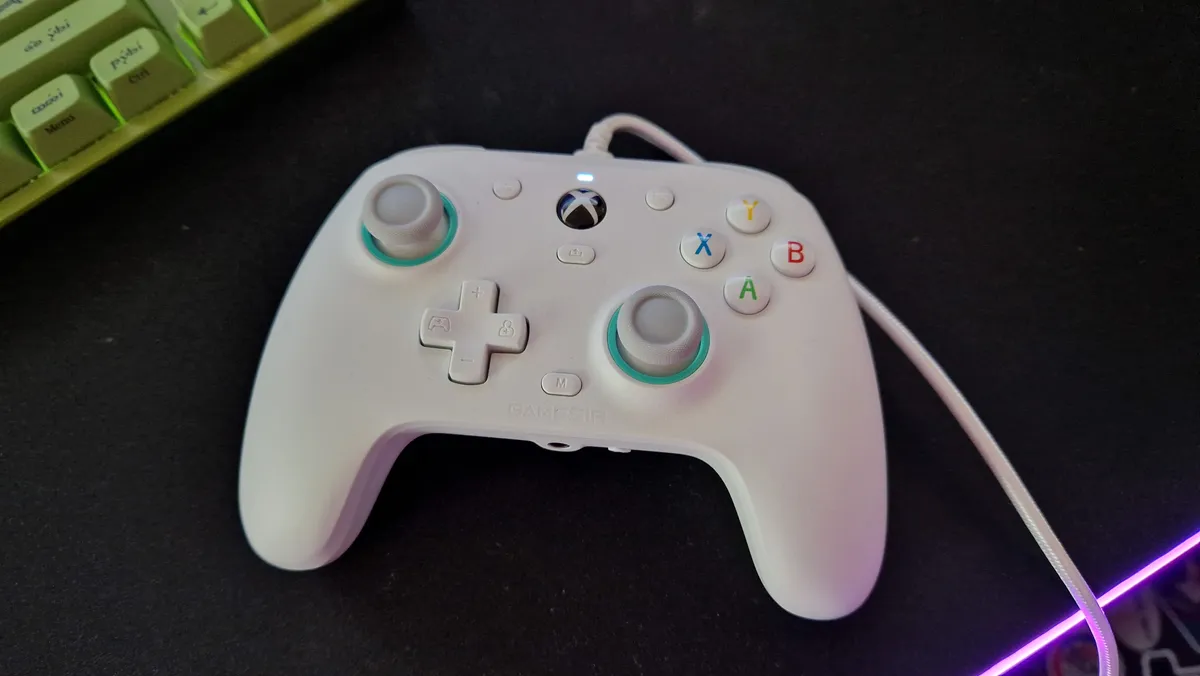
First off, you'll need to identify your gamepad's assignment button. On GameSir controllers, this is usually the "M" button; for other brands like 8BitDo, it's the button with the logo marked on it. For Razer pads, it's normally the button with a small circle on it. Again, your instructions will make this clearer for you.
GamesRadar+'s weekly hardware digest

Hardware nerds unite, sign up to our free tech newsletter for a weekly digest of the hottest new tech, the latest gadgets on the test bench, and much more from the team at GamesRadar+.

By submitting your information you agree to the Terms & Conditions and Privacy Policy and are aged 16 or over.

GameSir G7 SE close review shot

(Image credit: Future / Duncan Robertson)

Step 2: Mapping mode

All you'll need to do now is press that function button and wait until you see a flashing light that indicates the controller is entering its mapping mode. Sometimes, this won't happen until you press the function button and the back button you want to assign. Other times, it'll enter mapping mode when you hit the function button and the button assignment you're trying to map.

When the flashing starts, then you'll want to hit the button in the combination you haven't yet - so most likely, the button you're trying to duplicate to a back button.

You may like
  • A Control Resonant marketing image edited next to a Nacon Revolution X Unlimited controller Your pro controller's back buttons could be the answer to Control Resonant's spongy enemies
  • JSAUX Voidjoy Elite Extender back button attachment on a Pro Controller held in front of Legend of Zelda Ocarina of Time Remake The Voidjoy Elite Extender only makes sense for Pro Controller purists
  • JSAUX Voidjoy Elite Extender adapter connected to Switch Pro Controller on a green background JSAUX's latest Switch gadget adds new features to your old Pro Controller, but it is a year too late or right on time?

So, for example, if you want to map the "A" button to your right-hand back button, you likely entered mapping mode by hitting:

"Function button" + the right-hand back button

Now that mapping mode is active, hit the "A" button, and it'll map, and the flashing will stop to indicate a button has been mapped.

If you entered mapping mode by hitting:

"Function button" + "A"...

Then press the right back button to complete the combination.

It can be handy to do this while playing a game so you can immediately check if your button mappings have taken.

Razer Wolverine V2 Pro image of the back buttons up close

(Image credit: Future / Duncan Robertson)

Step 3: Checking, and profiling

Complete step 2 until you have mapped all the buttons on your controller to your desired settings. Now you can use a game to check that things are set up the way you want.

A lot of controllers will also have multiple profiles for you to setup. These can be useful if you want different back button assignments for different games. All you'll need to do to map a new profile is find the switch (usually found on the back of a pro controller) to change to a new profile, then complete step 2 again to create some different button assignments.

If you have trouble shifting profiles, again, adhere to your controller's instructions.

Setup 2: With software

The thumbstick customisation options of the Manba One

(Image credit: Future / Duncan Robertson)

Chances are, if your new pro controller has back buttons on it, it'll likely have optional PC or mobile software you can adjust it with. If you've got a controller like the Manba One, Nacon Revolution X Unlimited, or similar, that has a screen on it, you may have limited access to customization software on the controller itself.

Companion apps like these can be very powerful, and will let you get your full money's worth out of the gamepad you have in your hands. You'll be able to assign button mappings, yes, but you'll also be able to fully customize profiles, trigger and thumbstick sensitivities and deadzones, as well as the other features of your controller.

Step 1: Find your software

The first step here is to find your controller's official software. There may be a QR code on the box or on the instruction leaflet that'll take you straight to it. My advice is to make sure you're downloading something from your controller maker's official website - a few knock-offs exist, and you want to be careful you aren't getting scammed or hit with malware.

Turtle Beach Stealth Ultra Wireless review image of the controller's shoulders

(Image credit: Future / Duncan Robertson)

Step 2: Grab a USB cable

Most controllers, especially those from Nacon, will need you to be wired up to a PC to actually enact changes within companion software. This may mean you need to put your controller in wired mode using a switch on its back; just keep that in mind.

Good news, almost all controllers come with a USB to USB-C cable in the box, so you'll probably have one handy.

Step 3: Find the back button menu

This step is really easy, but open up the software, navigate to the button assignment tab or sub-menu, and use the diagram or image to map the buttons you want.

My recommended back button assignments

The shape of the Scuf Valor Pro's back buttons

(Image credit: Future / Duncan Robertson)

But what should you use these extra buttons for anyway? Well, in truth, whatever you like!

The best thing about back buttons is that they're yours to get creative with. Depending on the game you play the most, or the extra functions you'd feel most comfortable using back buttons for, you can assign them to what you want. There are no rules here.

If you're at a loss and you need some inspiration, it might help to think about why back buttons are so handy in the first place. Extra functions were initially put on controllers in an attempt to level the playing field in competitive shooting games, since players on PC who use a mouse and keyboard have more functionality at their fingertips and never need to yield control of the camera (and their aim). For that reason, you may want to assign your extra buttons to the controls that you feel most frequently force your thumbs away from the movement sticks. That way, you can always change your aim or move at a moment's notice.

I've been using controllers with back buttons for around five years now, and although I sometimes swap things out depending on the games I'm playing, I still use the following assignment as a blanket profile because I found it works best for the largest number of games.

GameSir T4 Kaleid's back buttons

(Image credit: Future / Duncan Robertson)

If I have two back buttons:

The right back button will be set to "A", or X if you're on PlayStation. This helps with navigating menus or general interaction with UI, but in-game, it's really handy being able to jump at any given moment.

My left back button is set to "X", or Square if you're on PlayStation. Again, this can be really handy for quick menu navigation, but it's also a way to ensure I can reload while on the move.

Victrix Pro BFG for Xbox from behind, showing its back buttons and other function buttons

(Image credit: Future / Duncan Robertson)

If I have four back buttons:

I'll use those two assignments I've already mentioned on the bottom set of back buttons.

On the top right, I'll have it mapped to "R3" (clicking the right stick in). This is an oddly useful assignment to have across various games, because it tends to be used for lots of miscellaneous things. It could be an aim or a change camera shoulder button, it could be a camera zoom, or something else to do with the inventory. For me, it was originally set as my melee key in Hunt: Showdown, which was really useful because it meant I could charge an attack without it compromising my aim - so it just kind of stuck.

On the top left, I'll have left on the D-pad. Again, this is more specific to me playing Hunt: Showdown. In that game, hitting left on the D-pad pulls out your first tool, which is usually a small knife you use to dispatch monsters quietly with. I'm frequently pressing that button, and it takes my thumbs off the sticks, so it's much easier to have it as a back button.

The shoulders, triggers, and bumpers on the Nacon Revolution X Unlimited

(Image credit: Future / Duncan Robertson)

If I have additional bumper buttons:

I'll use both of these to ensure my thumbs never need to come off the movement and camera sticks, so I'll almost always map them to the other two face buttons I haven't already set as back buttons.

If you think my back button assignments are a little weird, I don't blame you. Like I've said, it's about making these extra functions as useful to you as they can be. If you play Fortnite or Call of Duty, you'll probably have completely different assignments that'll work for you.

My advice is to play around with them to find the best options for you and your choice of game. My pro tip is to remember the "rule of thumb": the goal is to keep your thumbs firmly planted to their sticks, so it'll probably be more efficient to map your back buttons to the face buttons to ensure your thumbs aren't dancing about quite so often.


Still looking for your perfect pro controller? Check out the best PS5 controllers, the best Xbox Series X controllers, and the best Nintendo Switch 2 controllers.

Duncan Robertson
Duncan Robertson
Social Links Navigation
Hardware Editor

One of my earliest memories is playing SuperMario64 and wondering why the controller I held had three grips, but I only had two hands. Ever since I've been in love with video games and their technology. After graduating from Edinburgh Napier University with a degree in Journalism, I contributed to the Scottish Games Network and completed an Editorial Internship at Expert Reviews. Over the last decade, I’ve been managing my own YouTube channel about my love of games too. These days, I'm one of the resident hardware nerds at GamesRadar+, and I take the lead on our coverage of gaming PCs, VR, controllers, gaming chairs, and content creation gear. Now, I better stop myself here before I get talking about my favourite games like HUNT: Showdown, Dishonored, and Towerfall Ascension.

You must confirm your public display name before commenting

Please logout and then login again, you will then be prompted to enter your display name.

Read more
A Control Resonant marketing image edited next to a Nacon Revolution X Unlimited controller
Gaming Controllers Your pro controller's back buttons could be the answer to Control Resonant's spongy enemies
 
 
JSAUX Voidjoy Elite Extender back button attachment on a Pro Controller held in front of Legend of Zelda Ocarina of Time Remake
Gaming Controllers The Voidjoy Elite Extender only makes sense for Pro Controller purists
 
 
JSAUX Voidjoy Elite Extender adapter connected to Switch Pro Controller on a green background
Gaming Controllers JSAUX's latest Switch gadget adds new features to your old Pro Controller, but it is a year too late or right on time?
 
 
A collection of TMR gaming controllers
Gaming Controllers I've tested them for you, and these are the 9 best TMR controllers on the shelves right now
 
 
A reviewer holding the ELO Vagabond
Gaming Controllers The best mobile controller for gaming 2026
 
 
Nintendo Switch 2 Pro Controller on a wooden desk with blue backlighting
Gaming Controllers Nintendo Switch 2 Pro Controller review: this might be the best feeling gamepad I've held so far
 
 
Latest in Gaming Controllers
The GameSir G7 Pro 8K on a grey background next to a sign saying 'Black Friday deals'.
Gaming Controllers An 8K controller is finally cheap thanks to this Black Friday deal
 
 
The Icon Blue DualSense controller next to a sign saying 'Black Friday Deals'.
Gaming Controllers The PS5 controller Black Friday deals are plentiful over at Currys
 
 
A collection of sub-$100 controllers on a desk, with a Black Friday stamp in the middle of them
Gaming Controllers These are the budget controller deals I'd recommend this Black Friday that all fall under $100
 
 
The DualSense Edge being held up against a GTA 6 splashscreen
Gaming Controllers The DualSense Edge is taking a very rare discount as GTA 6 downloads onto your console
 
 
A GTA 6 promo image next to a best buy logo and a Nacon RXU controller
Gaming Controllers Best Buy launches its Black Friday doorbuster sale, but this is the only deal we’d recommend the weekend before GTA 6
 
 
The GTA 6 logo surrounded by various controllers
Gaming Controllers The best controllers for GTA 6: The gamepads I'd recommend for PS5 and Xbox players jumping into Vice City
 
 
Latest in Guides
Grand Theft Auto 6 Checking Out cutscene Jason and Lucia in their motel room looking at Linda off screen
Grand Theft Auto Everything you should do before the final mission of Chapter 2 in GTA 6
 
 
A purple Pegassi Infernus in GTA 6
Grand Theft Auto GTA 6 Pegassi Infernus location
 
 
GTA 6 fences
Grand Theft Auto Every GTA 6 fence location and where to find them
 
 
GTA 6
Grand Theft Auto How to get the fastest cars in GTA 6
 
 
A close up of a white GTA 6 Ocelot Jugular with a racing livery down the side.
Grand Theft Auto How to get the GTA 6 Ocelot Jugular
 
 
Grand Theft Auto 6 car using nitrous boos while pulling alongside other car in street race
Grand Theft Auto How to use NOS in GTA 6
 
 
LATEST ARTICLES
  1. "And then Obsidian was like, 'we'll try'"
    1
    BioWare turned down KOTOR 2 because LucasArts wanted the RPG done in 18 months
  2. 2
    PlayStation creator says it was his "secret intention" to trick Microsoft into making Xbox
  3. 3
    Avengers: Doomsday is on track to earn 260% more at the box office than Dune 3
  4. 4
    US Treasury official using AI for a Civ clone tries to shut down worries he's "too busy vibecoding"
  5. 5
    Ex-BioWare lead says only Bethesda can "get away with porting Skyrim to every single platform"

GamesRadar+ is part of Future US Inc, an international media group and leading digital publisher. Visit our corporate site.

Add as a preferred source on Google Add as a preferred source on Google
  • About us
  • Contact Future's experts
  • Terms and conditions
  • Privacy policy
  • Cookies policy
  • Advertise with us
  • Review guidelines
  • Write for us
  • Accessibility statement
  • Careers

© Future US, Inc. Full 7th Floor, 130 West 42nd Street, New York, NY 10036.

Please login or signup to comment

Please wait...