You are now subscribed
Your newsletter sign-up was successful
Want to add more newsletters?

Every Friday
GamesRadar+
Your weekly update on everything you could ever want to know about the games you already love, games we know you're going to love in the near future, and tales from the communities that surround them.

Every Thursday
GTA 6 O'clock
Our special GTA 6 newsletter, with breaking news, insider info, and rumor analysis from the award-winning GTA 6 O'clock experts.

Every Friday
Knowledge
From the creators of Edge: A weekly videogame industry newsletter with analysis from expert writers, guidance from professionals, and insight into what's on the horizon.

Every Thursday
The Setup
Hardware nerds unite, sign up to our free tech newsletter for a weekly digest of the hottest new tech, the latest gadgets on the test bench, and much more.

Every Wednesday
Switch 2 Spotlight
Sign up to our new Switch 2 newsletter, where we bring you the latest talking points on Nintendo's new console each week, bring you up to date on the news, and recommend what games to play.

Every Saturday
The Watchlist
Subscribe for a weekly digest of the movie and TV news that matters, direct to your inbox. From first-look trailers, interviews, reviews and explainers, we've got you covered.

Once a month
SFX
Get sneak previews, exclusive competitions and details of special events each month!
Setting up your PS5 can be a reasonably straightforward process, but there are elements of it that may be confusing if this is your first time with Sony's latest console. Which is why we're here to help with a selection of guides to get you past any sticking points. If you're brand new to PlayStation then we'll show you how to get up and running, but if you're upgrading from a PS4 then we've also got advice on how to import your games and even use some of your old accessories. Here's everything you need to know about setting up your PlayStation 5 so you can begin gaming as soon as possible.
How to set up your PS5
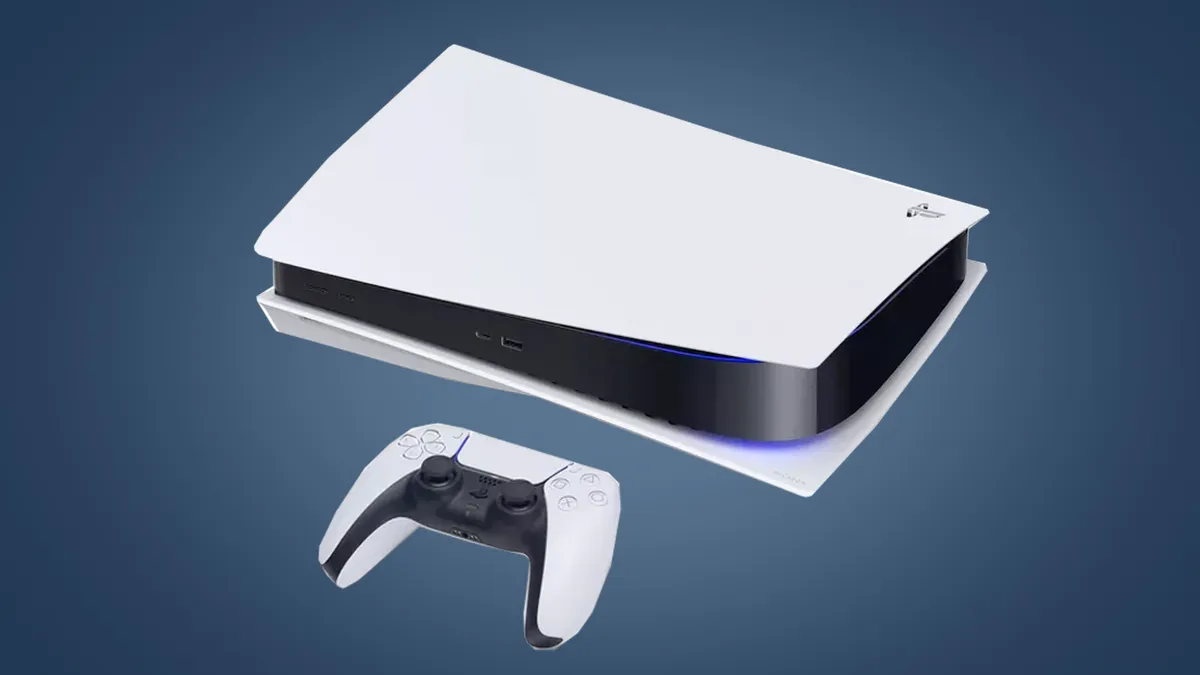
As soon as you've taken your PlayStation 5 out of its box, your first decision is whether to configure it with PS5 horizontal or vertical placement, as it is designed to work in either direction. For vertical placement you'll need to screw on the base plate for additional stability, while for horizontal placement the base simply clips on to the side. While some prefer the upright look, many don't have the vertical space for that so horizontal is the usual set up – just make sure the buttons and disc drive (if present) are to the left, otherwise it's upside down!
Once you've connected the power and HDMI it's time to turn it on, which may be easier said than done. If you're wondering where is the PS5 power button is then look on the front of the console to find two buttons at one end – these are labelled, but in black on black so depending on the lighting it can be hard to read. The larger button closest to the edge is the power button, while the smaller one next to it can be used to eject a PS5 disc, though naturally this won't be present if you have a digital edition.
Remember where these buttons are so you'll know how to turn off PS5 when you're done, though after completing the set up you're more likely to use the menu option within the UI to do this. There you'll also be able to configure your Rest Mode settings to determine what your console can do while in PS5 standby mode, from downloading updates to charging your controllers.
How to set up your controller

When you first set up your PS5, you'll need to connect the DualSense controller via the supplied USB-C cable to complete the initial synchronization with your system. There will also be firmware updates for your controller from time to time, but those can now be sent wirelessly from your console so no physical connection is required.
One thing you may discover early on is that the DualSense controller has a built-in microphone, which can be great for communication in a pinch if you don't have a dedicated gaming headset in use. However it also means that everything you say is automatically broadcast when playing online, so follow our instructions on how to mute a PS5 controller mic to avoid that. If other players are bothering you, then you can also disable voice chat on PS5 to find some peace while playing.
If, like me, your brain is wired like that of a pilot, then it's possible to use the PS5 invert camera setting at a system level to tell your console that you want looking up and down to be inverted. While this doesn't work with every game, it can save you some faffing with the settings. You may also find that the adaptive triggers and haptic feedback of the DualSense controller can be a bit overwhelming, in which case you can tone down or turn off PS5 adaptive triggers haptic feedback through the settings as well.
Lastly, if you still have an old DualShock 4 knocking around then you may be interested to know that you can use a PS4 controller on PS5, and while this is restricted to only playing PS4 titles it can definitely help for couch co-op sessions. You can also connect a PS5 keyboard and mouse for certain games, so if you want to expand your controls further we've got the details on setting that up.
How to play games on your PS5

There are two main ways of playing games on your PS5 – either by inserting a disc (on consoles equipped with a drive) or by downloading them from the PlayStation Store. Scroll to the left of the main console screen and you'll see an icon for the Store, then select that to browse everything that's available. Once you've made your selection you can check your PS5 download history to see how things are progressing, and if you have access to multiple PSN accounts then PS5 game sharing is also possible using the Primary console setting.
A cool feature of the PlayStation 5 is being able to capture screenshots and video clips at any time, to show off your gaming feats. However, it's not immediately clear where these files go once they've been saved, so we've got the lowdown on how to access your PS5 Media Gallery to relive and share any glories you've recorded. You can also change your PS5 capture settings if you like, to get your videos and screenshots in different formats.
While your focus may be on newer releases, don't forget that you can easily play PS4 games on PS5, either by inserting the original disc or downloading them from the Store. Furthermore, if you still have the games on your previous console then you can transfer PS4 games to PS5 using an ethernet cable or wifi, or if they were stored on an external hard drive you can simply plug that into your PS5 for instant access. Make sure that you download PS4 saves on PS5 so you don't lose any of your progress, and if they're not there already then transfer PS4 games to a PS5 hard drive to free up space on your internal SSD.
Of course, your new console isn't just about the games, as PS5 plays Blu-ray movies as well. In addition to regular Blu-rays, you can also watch 4K Ultra HD Blu-rays for the first time and get the highest definition available.
How to fix PS5 issues

While we all hope that things will work smoothly with a new console, there is always the possibility that something may go wrong. Often if there is an issue then the system UI will guide you through how to resolve it, but if you find yourself stuck then the PlayStation Support site has an extensive range of guidance grouped by category to steer you through.
For a couple of simpler issues you can fix yourself, if you're asking why isn't my PS5 controller charging then the most likely reason is you're either using an incompatible cable or the USB socket you're plugged into isn't providing enough power, so we've got some troubleshooting tips for that. We've also got a breakdown of the main PS5 error codes you may encounter, so if you're getting a warning message then we may have a fix for you.
Those are all of the basics you need to get your PlayStation 5 up and running, so you should be ready to install some games and start playing. If you're not sure what titles to check out first then we've got expert guidance on the best PS5 games with a ranked list, and if you're looking to the future then we also have a summary of all the upcoming PS5 games you need to watch out for.
© GamesRadar+. Not to be reproduced without permission.

You must confirm your public display name before commenting
Please logout and then login again, you will then be prompted to enter your display name.