





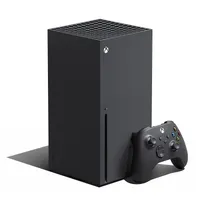
Connecting your Xbox controller to your new Xbox Series X console or even your PC or mobile device means you can use your preferred controller regardless of what you're playing on. Thankfully, getting the controller connected to your Xbox Series X is avery simple process, taking only a couple of button presses to get sorted. Connecting an Xbox controller to a PC, Android device, or iOS device via Bluetooth isn't much more complicated. Of course, wired connections via a USB to USB-C cable are also an option, and are arguably the simplest connection method if you're able, but here's how you go about wirelessly pairing the included Xbox Series X controller to your console and other devices.
How to pair an Xbox Series X controller to an Xbox Series X or S

If you've previously paired an Xbox Wireless Controller to an Xbox One console then this process should be familiar to you as it remains the same. Start by inserting the batteries or battery pack into your Xbox Series X controller then pressing and holding the Xbox button until it lights up.
Next, press the Pair button on the front of your Xbox Series X or S console, which is found above the USB port. Then, within 20 seconds, press and hold the Pair button on your Xbox Series X controller - that's the little one close to the USB-C port and between LB and RB - until the Xbox button starts flashing. That signals that it's searching for your console, and shortly after the Xbox button should stay lit to confirm it's connected.
If you are having trouble pairing your Xbox Series X controller to your console this way, you can instead use the USB-C cable to connect it directly to your Xbox Series X or S, which should create the connection automatically. Remember that Xbox Series X controller and accessory compatibility works for lots of older devices, so you don't need to have the latest controller to do this.
Now that you have a controller paired to your console, you should also make sure you know which which discs work in an Xbox Series X so that you know which games you can play with your controller. You may also be wondering what that Xbox Share button below the main Xbox button is for, or even how to how to eject an Xbox Series X disc using the eject button on the front of your Xbox Series X console.
How to pair an Xbox Series X controller to a PC

To pair an Xbox Series X controller to a PC, first make sure that your PC and controller have received the latest updates. Press the Xbox button on your controller to turn it on, then hold down the Pair button for 3 seconds before letting go. Next, on your PC go to Start > Settings > Devices > Bluetooth and ensure that Bluetooth is turned on, then choose the Add Bluetooth or other device option. Click on Bluetooth in the Add a device screen, then wait until Xbox Wireless Controller appears in the device list and you're ready to go.
As with the Xbox Series X console, connecting your controller to your PC via a USB to USB-C cable also works, allowing you to play PC games with a wired controller.
How to pair an Xbox Series X controller to an iOS device

To pair an Xbox Series X controller to an iOS device, make sure your controller has received the latest updates and your iOS device is on the latest operating system version. First, on your iOS device go to Settings > Bluetooth and ensure that it's turned on. Next, press the Xbox button to turn on your controller, unless it's already paired with an Xbox in which case you should leave it off. Hold the Pair button for 3 seconds and release, then check the Bluetooth device list on your iOS device and choose Xbox Wireless Controller. Wait until the devices show as paired, then you're done.
How to pair an Xbox Series X controller to an Android device

To pair an Xbox Series X controller to an Android device, make sure your controller has received the latest updates and your Android device is on the latest operating system version. Press the Xbox button to turn on your controller, then hold the Pair button and release after 3 seconds. Next, on your Android device go to Apps > Settings > Connections > Bluetooth > Turn On, then check the list of available Bluetooth devices and choose Xbox Wireless Controller. Wait until Connected appears underneath the Xbox Wireless Controller, then you're all set. While you're on your phone, why not find out how to set up the Xbox mobile app as well.
© GamesRadar+. Not to be reproduced without permission.

