


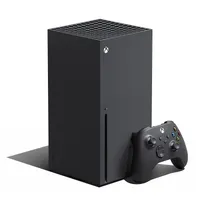
Moving games to your Xbox Series X using external transfer or network transfer will save you lots of time manually finding and reinstalling every game from your library on your new console. It'll even let you play older games thanks to backwards compatibility with Xbox One games and select Xbox 360 and original Xbox titles. But you'll either need a big external storage device compatible with your Xbox Series X or you need to have all your Xboxes connected to the same network at once. Otherwise, the process is relatively painless, so here's how to transfer games to your Xbox Series X via external transfer or network transfer.
Note that these two methods only apply to Xbox One, Xbox 360, and Xbox software, as newer games optimised for Xbox Series X and S can only be played from the internal SSD or an installed Storage Expansion Card.
How to transfer games to Xbox Series X via external transfer

The quickest method for transferring games to your Xbox Series X is to via an external transfer, which requires a USB 3.1+ external hard drive (or better) to connect to your previous Xbox device. If you were using this external hard drive with your Xbox device then your games may be installed on it already, otherwise you can copy them over to it using the dashboard.
Once they're on the drive, plug it into your new Xbox Series X or S and play your downloaded Xbox One, Xbox 360, and Xbox games directly from the external HDD. You can also move them over to the console's internal SSD, but this'll take up valuable space for games optimized for the SSD's speed.
Discs are also an option if you don't have a digital library of games but you'll need to know which discs work in an Xbox Series X and how to eject an Xbox Series X disc.
How to transfer games to Xbox Series X via network transfer

Although not as immediate, you can also transfer games to your Xbox Series X via network transfer. Be aware that the time this takes will depend on what your internet speed is like and requires you to have your older Xbox consoles set up and connected to the same network as your Xbox Series X.
To enable this feature, press the Xbox button your controller to open the guide, navigate to the Profile & system section, then select Settings > System > Backup & transfer > Network transfer. Finally, check the 'Allow network transfer' box and you should be able to choose which Xbox One, Xbox 360, and Xbox games you want to transfer over the network to your new console.
Of course, if you don't have an external storage drive, or can't set up your Xbox One, you can always access your purchase history from the Store and find any games you own to download them directly to your Xbox Series X or S – you'll just need to wait for the download to complete before you can play them. You'll find more information on how to install Xbox Series X games here!
And while you're delving into the settings of your Xbox Series X, you can alter its power options and switch to the Xbox Series X Sleep mode if you want a rapid boot-up time.
© GamesRadar+. Not to be reproduced without permission.

