


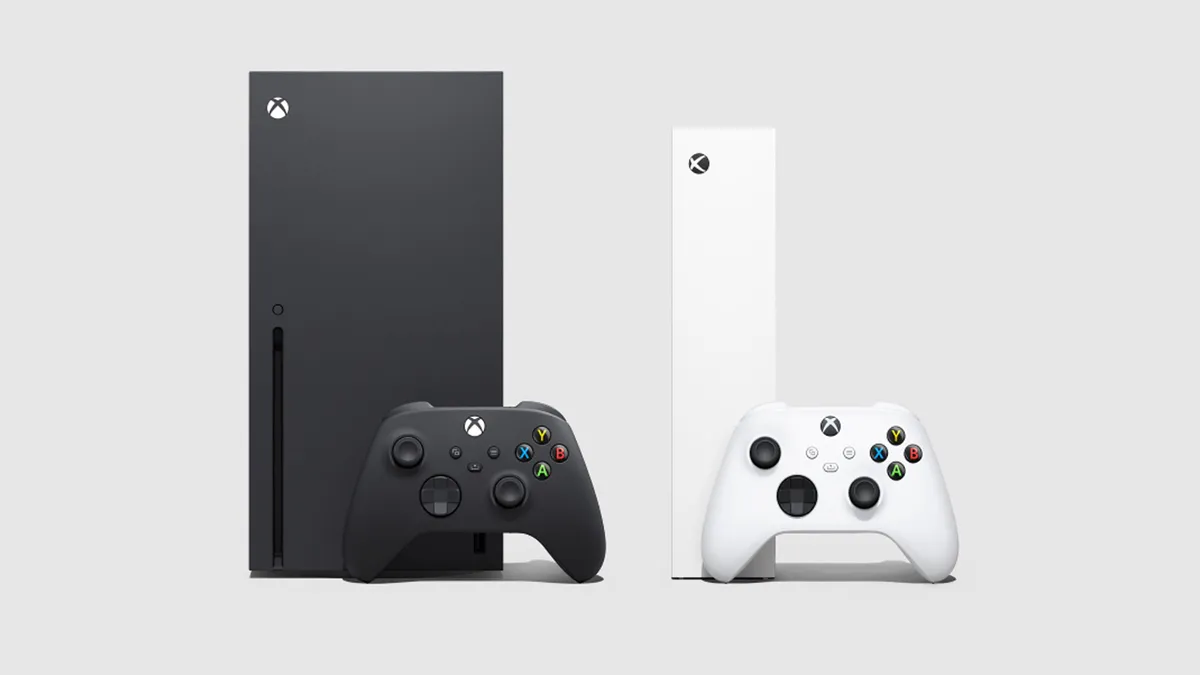
Using the Xbox mobile app, you can set up your new Xbox Series X quickly, getting settings and profiles out the way first. It will obviously still take a bit of time, but by following the Xbox Series X instructions on the app on your mobile device, you won't have to go through every menu and option, and any updates will start automatically. The point is, it'll help you start playing games much faster than usual, so here's how you get setup with the Xbox mobile app.
How to download the Xbox mobile app

If you're an Android user then downloading the Xbox mobile app is relatively simple, as you just need to go to the Google Play Store and search for "Xbox" then install it.
For iOS users, you can do the same thing on the App Store to get the Xbox app installed to your Apple device. After you've completed your console setup, you can use this app to manage and download screenshots and clips that you might have captured using the Xbox Share button on the updated controller included with your Xbox Series X.
How to set up your Xbox Series X with the Xbox mobile app
With the Xbox app successfully installed on your mobile device, launch it and then open the Library tab – which is the icon made up of three books down at the bottom – then choose 'Consoles' followed by 'Set up a new console'. All you need to do then is follow the instructions, which will take you through the configuration process on the Xbox mobile app to get all your settings ready.
Once your Xbox Series X or S has finished updating you should see your Gamertag displayed on screen. Now you can grab and pair your Xbox Series X controller to your console and complete the set up.
At this point you should be all ready to start installing Xbox Series X games, whether that's through digital downloads, discs, or even Xbox Series X external transfer. But if you encounter any issues with the Xbox mobile app or this setup procedure, you can always complete it through the console once you've connected your controller. You may also want to adjust your power settings and turn on Xbox Series X Sleep mode.
© GamesRadar+. Not to be reproduced without permission.

