





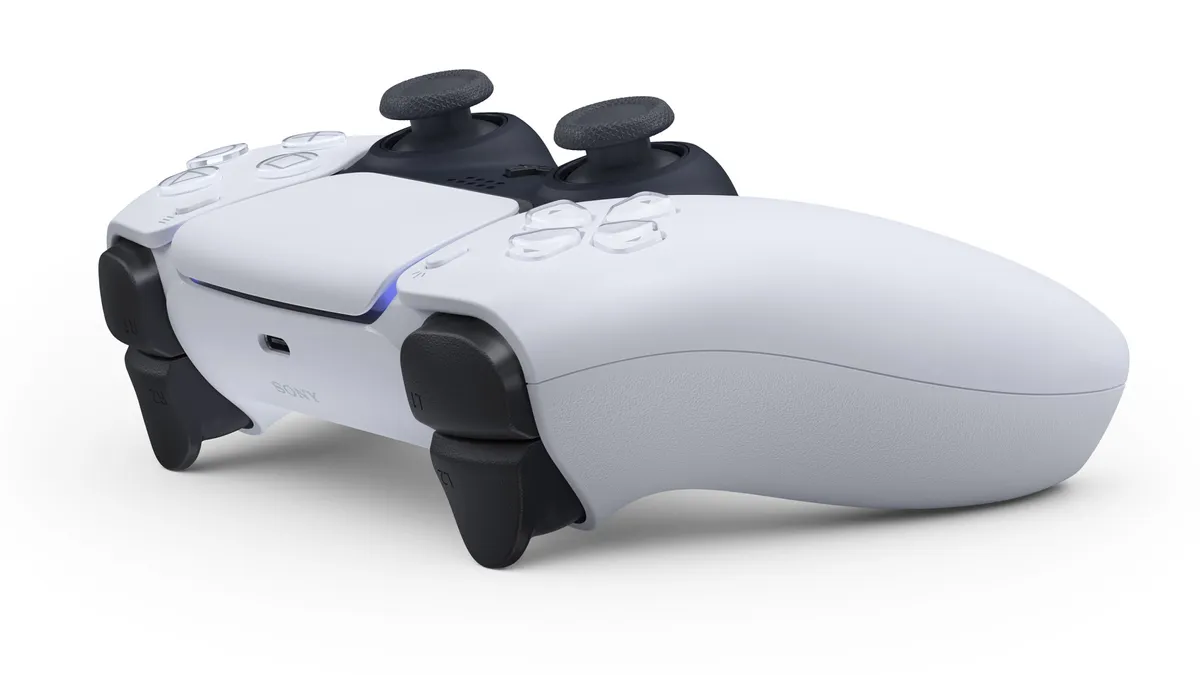
To connect your PS5 controller to a PC and use the DualSense on a gaming computer is pretty easy to do and definitely worth it - the DualSense is a great controller, though it's worth keeping in mind that some of its most unique features (namely haptic feedback and adaptive triggers) won't work on PC - you need the console it was made for to make the most of those, sadly.
Don't worry though, it's still a great controller regardless. There's two methods to connect the PS5's Dualsense to your PC - one which requires a USB-C to standard USB cable (which should have come with the controller itself) or PC with a Bluetooth connection.
Using the PS5 DualSense on PC with a wired connection
To connect to your PC you'll need a USB-C to standard USB cable, like the one you use for charging your pad through the PS5. Plug this into a port on your PC, and you're good to go. It really is that simple.
If you're happier leaving your DualSense for the PS5, but now have a few old PS4 controllers hanging around, here's how to use your PS4 controller with your PC
Using the PS5 DualSense on PC with a Bluetooth connection
First things first, you'll need a PC with Bluetooth capability. Some PCs have this built-in, or you can invest in a Bluetooth adaptor for around $6.
Then, head to your WIndows setting menu. Look for "Devices", and then "Bluetooth & other devices". Next hit "Add Bluetooth or other device" and then "Bluetooth." Your PC will start searching for devices, so now's the time to hold down the PS Logo and your Create button (the one we called Share on PS4) until the lights on your DualSense start to flash. You should then see "Wireless Controller" appear as an option.
Sadly, this isn't the end of the process. Some electrical wizard will no doubt come up with some software to make the process easier, but right now the DualSense won't be compatible with all games. That will depend on the controller drivers the game uses, and it can be a frustrating process of trial and error to find out which games will accept the DualSense.
There is shortcut though, and it's thanks to good old Steam. Currently you'll need to be signed up to the Steam Client Beta for this to work. To do so:
- With Steam running, click on "Steam" in the upper left, then choose the "Settings" menu. (Preferences on Mac)
- On the "Account" tab under "Beta Participation" click the "Change..." button.
- Select the "Steam Beta Update" from the drop down list and click "OK".
- You will be prompted to restart Steam, please select the "Restart Steam" button.
Then connect your pad (with your cable or Bluetooth) then open Steam and launch Big Picture Mode. The DualSense will be listed as a controller, but right now it will be listed as a PS4 controller. Because betas are fun works in progress.
Again, this won't give you the haptic feeback, the adaptive trigger, or even the trackpad, but this could change if developers start to support them. It will work like a standard last-gen controller, and could save you dropping some cash on an Xbox pad.
We'll update this guide as the fast-moving world of PC games gets to grip with the PS5 controller, and you can check out more of our essential guides below.
PS5 review | Transfer games to PS5 hard drive | How to use a PS4 controller with PS5 | Where is the PS5 power button | PS5 standby mode explained | Best PS5 SSD | Best PS5 external hard drives | PS5 headsets | Upcoming PS5 games | How to download PS4 saves on PS5 | PS5 stock updates

