You are now subscribed
Your newsletter sign-up was successful
Want to add more newsletters?

Every Friday
GamesRadar+
Your weekly update on everything you could ever want to know about the games you already love, games we know you're going to love in the near future, and tales from the communities that surround them.

Every Thursday
GTA 6 O'clock
Our special GTA 6 newsletter, with breaking news, insider info, and rumor analysis from the award-winning GTA 6 O'clock experts.

Every Friday
Knowledge
From the creators of Edge: A weekly videogame industry newsletter with analysis from expert writers, guidance from professionals, and insight into what's on the horizon.

Every Thursday
The Setup
Hardware nerds unite, sign up to our free tech newsletter for a weekly digest of the hottest new tech, the latest gadgets on the test bench, and much more.

Every Wednesday
Switch 2 Spotlight
Sign up to our new Switch 2 newsletter, where we bring you the latest talking points on Nintendo's new console each week, bring you up to date on the news, and recommend what games to play.

Every Saturday
The Watchlist
Subscribe for a weekly digest of the movie and TV news that matters, direct to your inbox. From first-look trailers, interviews, reviews and explainers, we've got you covered.

Once a month
SFX
Get sneak previews, exclusive competitions and details of special events each month!
Setting up your Xbox Series X or S is generally pretty simple, but there are some things you can do that might make the whole thing even easier for you. Setting up the whole thing via the Xbox mobile app can speed up the process and you can even use network transfer features to move your game library from your Xbox One over to your Xbox Series X smoothly. And you'll definitely want to know about several new features on the Xbox Series X and new wireless controller that we've explained in detail so that you can get the most out of your new console. Here are all the essentials you need to know when it comes to setting up your Xbox Series X so that you or a loved one can start playing as quickly as possible.
Xbox Series X basic setup guide
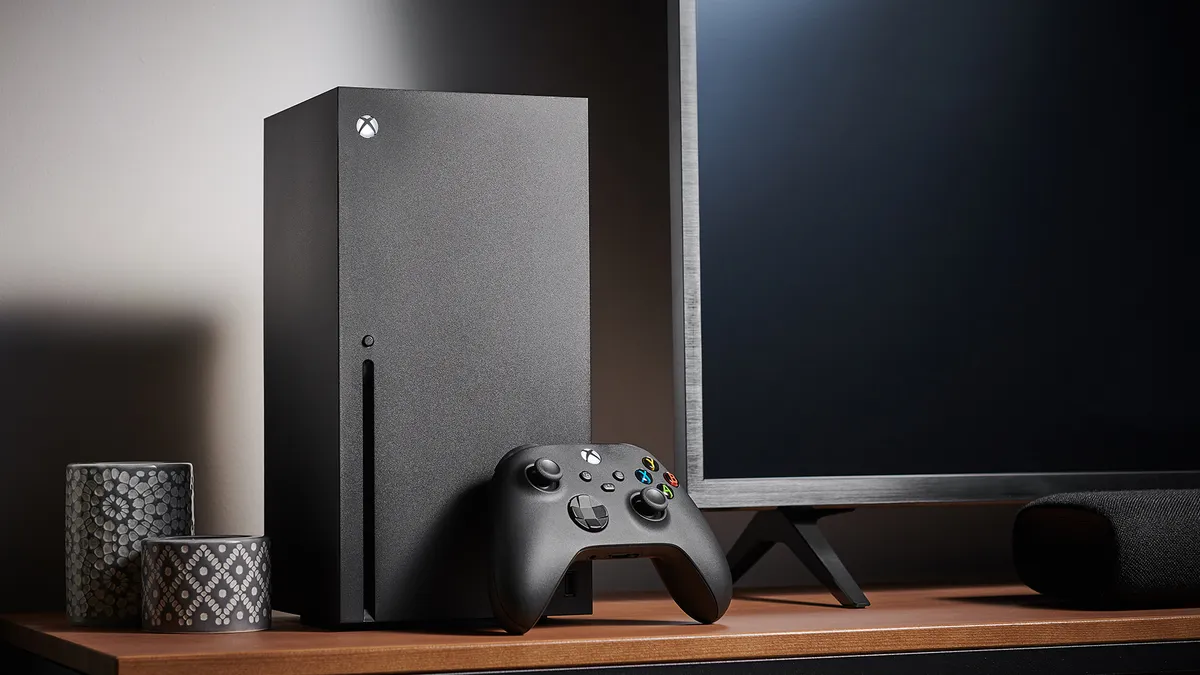
Once you've got your Xbox Series X plugged in with its power cable and connected to a TV or monitor with an HDMI cable, you can turn on the console and begin the proper setup process. It should be quite self-explanatory for the most part, requiring you to sign into an existing Microsoft account, or create a new one, but you can get some extra help by opting to set up the Xbox mobile app too. This lets you configure parts of your console through your phone while it sets itself up, including importing settings from an Xbox One if you had one.
You'll obviously need to know how to connect an Xbox Series X controller to your console if you're to play anything, or perhaps even a PC or mobile device depending on if you'll be doing any Xbox gaming away from your console – features like Xbox Play Anywhere and cloud streaming through Xbox Game Pass let you play games on lots of different devices.
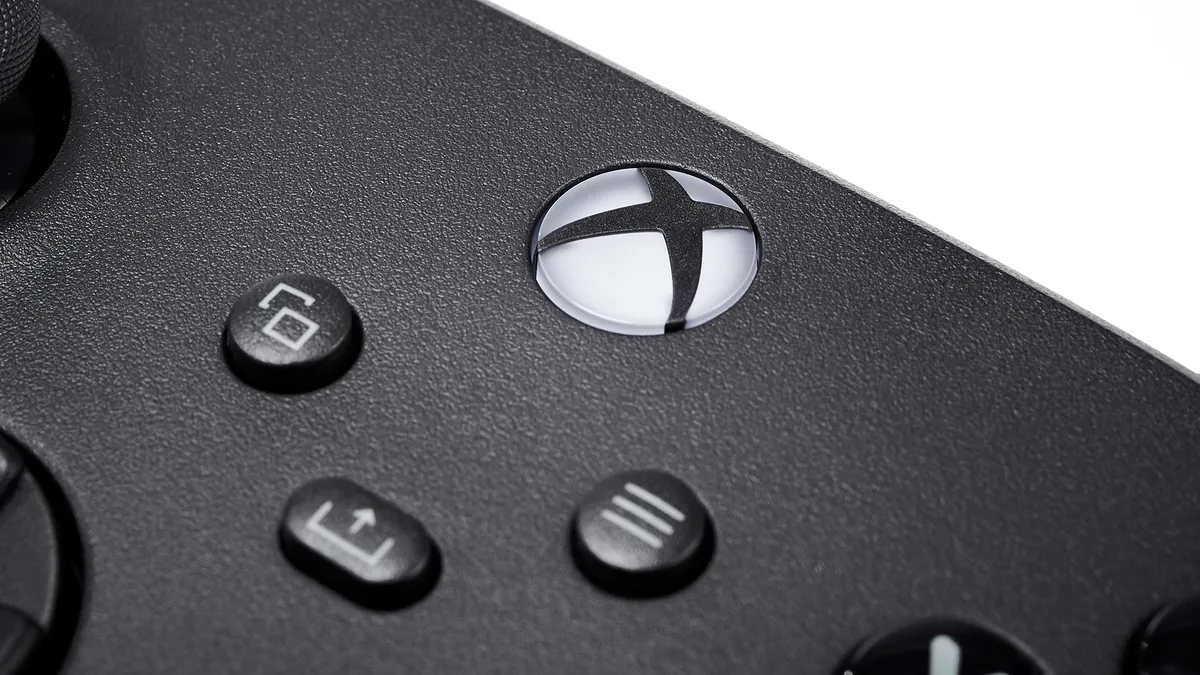
In fact, if you've just upgraded from an Xbox One, you should find that most of your old accessories, such as controllers and even headsets work thanks to Xbox Series X controller and accessory compatibility. But bear in mind that only the revamped Xbox controller (your Xbox Series X or S comes with one of these) has the dedicated Xbox Share button, which makes taking screenshots and capturing short clips incredibly easy, if you're into that sort of thing.
To cap off the top-level setup bits, I recommend looking at the power options and the Xbox Series X Sleep mode if you've not already been taken through that. Sleep and Shutdown mode both have their benefits and drawbacks, but you can at least change which mode your console uses at any time.
How to play games on your Xbox Series X and more

Now it's time to get some games installed so that you actually have something to play. There are several ways you can install Xbox Series X games, but physical discs and digital store downloads are your main options - if you're going down the digital download route, you might also want to know how to download free Xbox Series X games. If you've got an extensive library of Xbox games to bring over from a previous console, such as an Xbox One, you can use the Xbox Series X external transfer and network transfer features too.
If you're installing games from discs, you'll want to know which discs work in an Xbox Series X as not every game is compatible. I'm also not ashamed to admit that I can never remember which way discs are meant to face when inserting one into the console, so we've covered that and how to eject discs from your Xbox Series X for good measure. You'll definitely want to know about that if you're planning on using your Xbox Series X as more of a multimedia device for watching movies and TV shows with physical discs as, yes, the Xbox Series X can play Blu-ray movies.
If you're planning on getting that much use out of your Xbox Series X, switching between games and other media frequently, you'll love one of the console's best features. Xbox Quick Resume lets you have multiple games running at once, with games other than the one you're currently playing being left in a suspended state. That means that when you return to a suspended game, you can carry on from exactly where you left off, and this even works if you turn your console off and come back to it later.
What to do if your Xbox Series X goes wrong

But such is the way with modern technology that things can sometimes just break or not work as intended. Hopefully that isn't the case for you with your Xbox Series X or S, but if things have gone wrong, it might not be your fault anyway. If you're trying to play online but are beset by connection issues, high packet loss on Xbox could be a what's affecting you. It's worth checking out the linked guide and trying some of the suggested fixes as they can often help with any sort of online connectivity problem.
But if your Xbox Series X crashes, freezes, or starts acting up in some other way, your first measure should be to restart it or perform an Xbox Series X hard reset – despite how it sounds, you won't lose any game saves or data by doing this. Power cycling your console is actually an important part of keeping your Xbox running smoothly too.
If you have a more substantial hardware issue to the point where your Xbox Series X is consistently going wrong or is nearly or entirely unusable, then you'll want to get in contact with Xbox's customer support. Again, hopefully it's unlikely that you'll need to use any of the above advice but it's all stuff worth bearing in mind.
And that's pretty much all the basics covered when it comes to understanding your Xbox Series X, and you should now have your console ready to go with games installed, an internet connection established, and controllers connected. For our expert advice on what to play, you can check out our list of the best Xbox Series X games you can play right now. And if you're looking ahead for more things to play, we've also covered all upcoming Xbox Series X games too.
© GamesRadar+. Not to be reproduced without permission.

You must confirm your public display name before commenting
Please logout and then login again, you will then be prompted to enter your display name.