The Nintendo Switch 2 might have launched with all its mouse controls intact, but Metroid Prime 4 is the first chance many Ninty fans will have to truly put that sensor to work. The first person shooter feels made for the new handheld's hidden feature, and if you're used to the best gaming mouse experience on PC you may well prefer to crack those Joy-Con off your console.
I tested Metroid Prime 4 back in the early Switch 2 reveal event days, and found that sensor far more exciting than the traditional gamepad controls. However, if this is your first time running that Joy-Con along the desk you may be wondering how to use mouse controls on Metroid Prime 4.
How to use mouse controls on Metroid Prime 4

1. Remove both the Joy-Con from the system; you'll need both of the controllers detached for mouse controls to work
2. Make sure your game is set up to automatically swap control schemes; head to 'Settings' > 'Misc' > Toggle 'Enable Mouse Controls: Auto'
2. Place the right-hand Joy-Con with the orange base down on the desk
3. Position your index finger on the R button and either use your middle finger for the ZR button, or switch between the two
4. Keep the left-hand Joy-Con in your other hand
Metroid Prime 4 will automatically switch to mouse controls when each Joy-Con is set up correctly. You can now use your left hand to control movement and your right for aim and camera controls.
How to adjust mouse controls on Metroid Prime 4
You can also change the mouse sensitivity in the 'Camera' menu under 'Settings'. Here, you'll have access to a sliding scale of sensitivity across both the X and Y axis of movement. The higher you set this scale, the more your camera will pan with each mouse movement.
You'll also have the option to choose between 'Default' and 'Linear' sensitivity curves at the bottom of this menu. Default will give you a smoother tracking experience, with more gradual acceleration. Linear tracks your mouse's on-screen position directly to your Joy-Con, for a more realistic feel.
I'd recommend players new to first person shooters stick with default for a little more wiggle room in their movements. However, seasoned pros will want to switch to linear for more of a traditional gaming mouse feel.
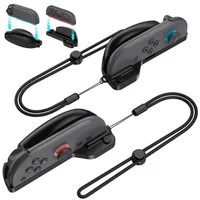
Should you use mouse controls on Metroid Prime 4?
The beauty of Metroid Prime 4 is how effortless that transition between traditional buttons and mouse controls is. That means you can quickly swap to your sensor for more intense gunfights and return to full controls for adventuring.
Of course, these controls will work much better if you're playing with a hard surface nearby. A desk setup is the ideal scenario, but I've found this sensor can run impressively well on everything from a couch to jeans as well. It's going to be a little trickier if you're already in full handheld mode, as you'll need somewhere to prop your screen.
In general, though, mouse controls offer better speed and more accuracy in faster gameplay moments.
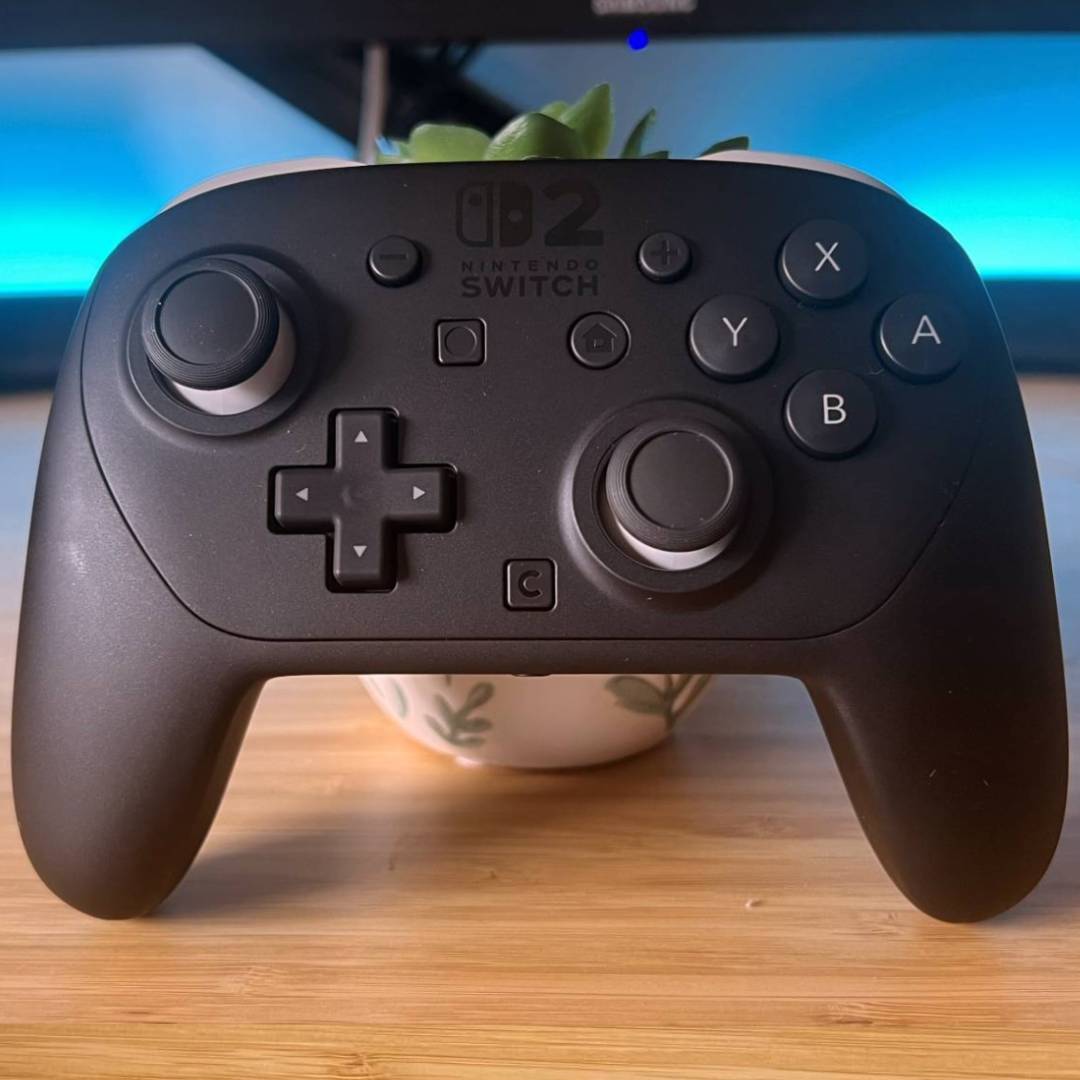
1. Best controller: Nintendo Switch 2 Pro Controller
2. Best case: Belkin Charging Case
3. Best headset: SteelSeries Arctis Nova 3 Wireless
4. Best earbuds: SteelSeries Arctis Game Buds
5. Best memory card: Samsung 256GB MicroExpress SD
6. Best portable charger: JSAUX 20,000mAh Power Bank
See all the best Nintendo Switch 2 accessories
We're rounding up plenty more gadgets for your handheld, like the best Nintendo Switch 2 cases and best Nintendo Switch 2 headsets.

You must confirm your public display name before commenting
Please logout and then login again, you will then be prompted to enter your display name.