You are now subscribed
Your newsletter sign-up was successful
Want to add more newsletters?

Every Friday
GamesRadar+
Your weekly update on everything you could ever want to know about the games you already love, games we know you're going to love in the near future, and tales from the communities that surround them.

Every Thursday
GTA 6 O'clock
Our special GTA 6 newsletter, with breaking news, insider info, and rumor analysis from the award-winning GTA 6 O'clock experts.

Every Friday
Knowledge
From the creators of Edge: A weekly videogame industry newsletter with analysis from expert writers, guidance from professionals, and insight into what's on the horizon.

Every Thursday
The Setup
Hardware nerds unite, sign up to our free tech newsletter for a weekly digest of the hottest new tech, the latest gadgets on the test bench, and much more.

Every Wednesday
Switch 2 Spotlight
Sign up to our new Switch 2 newsletter, where we bring you the latest talking points on Nintendo's new console each week, bring you up to date on the news, and recommend what games to play.

Every Saturday
The Watchlist
Subscribe for a weekly digest of the movie and TV news that matters, direct to your inbox. From first-look trailers, interviews, reviews and explainers, we've got you covered.

Once a month
SFX
Get sneak previews, exclusive competitions and details of special events each month!
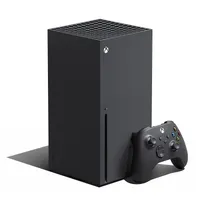
Using the Xbox Series X Share button on your new Xbox Controller, you can easily capture screenshots and short clips to preserve your gaming highlights. While this extra button on the controller below the main Xbox button isn't hard to miss, you need to know how it functions to get what you want out of it. You can even upload any clips or images you capture with the Share button on your Xbox Series X to the Xbox network, letting other players marvel at your skill or laugh at your misfortune. With all that in mind, here's what you need to know about the Share button on the Xbox Series X controller and how to use it.
How to use the Xbox Share button to record, share, and broadcast footage

The Xbox Share button has multiple functions based on how you press it:
- Single press = Take screenshot
- Press and hold = Record previous 30 seconds of gameplay
- Double Press = Open Recent Captures menu
You can change the Share button's recording settings within the 'Capture settings' menu, including how long the clip is, its resolution, where captures are stored, and whether they're automatically uploaded to the Xbox network.
To find all your clips and screenshots, you can open the 'My Captures' app, which allows you to view, delete, share, and transfer clips. Alternatively, if you want to quickly check a recent capture, you can double press the Xbox Share button to open your 'Recent captures' on the Xbox guide. Scroll down to 'Show all' to open the My Captures app.
Your recent captures will be automatically uploaded, and if you have the Xbox mobile app downloaded, you can view and share them easily from there. For more information on how to set up the Xbox mobile app, take a look at our separate guide covering that. Be aware that some captures can be deleted from the Xbox network after 90 days, so make sure your clips are backed up on your console or on some external drive.
© GamesRadar+. Not to be reproduced without permission.

You must confirm your public display name before commenting
Please logout and then login again, you will then be prompted to enter your display name.