GamesRadar+ Verdict
The YoloCam S3 makes some bold claims about having DSLR image quality despite being a simple USB webcam. While it isn't the absolute best image quality we've seen in a webcam, it's pretty darn close, and brings that excellent quality thanks to good aperture and sensor size down to a much more affordable price point.
Pros
- +
Great price for 4K
- +
Distinct design
- +
High-quality imagery
- +
Impressive lens tech
Cons
- -
Proprietary software needed
- -
No privacy cap
Why you can trust GamesRadar+ Our experts review games, movies and tech over countless hours, so you can choose the best for you. Find out more about our reviews policy.
The YoloLiv YoloCam S3 might be the nicest-looking webcam I have ever used. Unlike the current trend of smaller AI-controlled PTZ (Pan-Tilt-Zoom) style webcams, the YoloLiv S3 isn’t afraid to avoid the cutesie, animated-robot-come-to-life look, instead harkening back to webcams of a few years ago that opted for a bulkier, rounded lens. However, that inspiration isn’t just surface-level as it attempts to rival - or mimic - the visuals of much more powerful DSLR cameras.
Deciding on the best streaming gear for gamers is a difficult decision. It’s a balance of finding things that won’t set you back hundreds, but also finding peripherals that will actually make your content stand out. In the last few years, we have seen an influx of top-range webcams that cater to your every need, but when taking on a giant like the Razor Kiyo Pro Ultra, which aims to give you DSLR-quality with its somewhat obnoxiously-sized sensor and lens, you need to be able to swing for the fences and hit a home run.
Setting you back $199/£209, the YoloCam S3 a webcam that sits in a very competitive window that matches its PTZ webcam rivals but majorly undercuts the Razor Kiyo Pro Ultra - not to mention is more readily available as Razer's stock seems to be dwindling. But can the YoloCam S3 play in the major leagues against the titan that is Razer? I think it might.
Design

As I mentioned, the YoloCam S3 is a visually striking camera. While it is not the most compact device I’ve ever seen, it doesn’t matter because it looks and feels like something you’d want to show off as part of your gaming setup. Sitting right in the centre of the textured black casing is the lens, which takes up about 70% of the real estate on the front of the device.
Along the bottom and the side of the device, you’ll find little symbols of magnets. When I first unboxed the YoloCam S3, I was confused why, but then very quickly discovered one of my favourite little design choices. The camera unit attaches to the monitor mount via magnets - at this point, you’re probably perplexed that a 27-year-old man could be amazed at something as simple as a magnet, but stay with me. It feels intuitive as it’s so simple to set up and allows you to control whether your webcam displays as landscape or portrait, which is a nice touch to have as a hardware-level change rather than a software one that doesn’t quite hit the same aspect ratio and quality.

If you’ve read any of my past reviews, you’ll know I’m not a fan of RGB, so I’m glad to say that there is none of that to be found on the YoloCam S3. The only colour you’ll find is a small indicator light to let you know that it’s on, and a small blue ring around the lens. To me, this gives me the sense that YoloLiv is trying to make the YoloCam S3 stand out from the pack, and I have to say that it’s working, for me at least.
However, I was surprised to find that there is no privacy cap for the lens. Most of the best webcams on the market have some way of allowing you to hide the lens to give the extra confidence of privacy in case some entity is tracking your webcam feed.It’s still worrying that this is a thing we have to think about - but the YoloCam S3 doesn’t. Just the previously mentioned indicator light, which lets you know it’s active. I’d have appreciated some cover for the lens for both privacy and protection, as I wouldn’t want it to get damaged if I move it anywhere. Admittedly, there is a setting in the app that allows you to turn the camera off when not in use, however I don’t like that it is off by default, meaning your camera will stay active unless you find the specific toggle.
Features

YoloLiv claims on their website that the YoloCam S3 is the “closest you can get to a DSLR,” in the webcam world, and it’s an interesting claim to make in the age of tiny webcams that have the power of full-blown 4K image capture. The YoloCam S3 features a lens capable of 4K at 30fps or 1080p at 60fps to really ensure that your image is crystal clear, but the key difference here is going to be that it includes a CMOS sensor size of 1/1.3” - which the brand claims is “possibly the largest sensor ever in a webcam,” however “possibly” is doing the heavy lifting for them as the Razor Kiyo Pro Ultra has a larger sensor of 1/1.2. In addition to that, Razer’s webcam has a focal length of 24mm and an aperture of f/1.85.
In addition to the hardware, the YoloCam S3 also comes with the YoloLiv Compose software, which allows you to really get into the fine details of the camera, allowing you to tweak the visuals to suit your needs. Like most of these recent webcams, it feels pretty compulsory to use the software that is provided, otherwise you’d miss out on key features such as your color correction, focus, frame rate, and exposure. I’d highly recommend you install it. The software is fairly easy to understand, even if downloading another app feels a bit tiresome.
Performance

Straight out of the box, I was impressed by the visuals. Not just at the handsome chap looking back at me on the computer screen, but by just how clear and high-quality the image was. I’ve had the opportunity to use webcams such as the OBSBOT Tiny 2 Lite, the OBSBOT Tiny 3, and the Razer Kiyo Pro and Ultra models, and honestly, this might be one of the best I’ve ever seen at this price range - which is high praise, especially compared to the Razer Kiyo Ultra.
While sitting in the Compose software, I noticed just how impressive the bokeh effect was... But with the YoloCam S3, this isn’t a software trick. It has achieved this effect via the lens itself.
The clarity and sharpness were pretty astounding on the YoloCam S3, perhaps a little too sharp, as you could see almost every pore and stray hair, so I jumped into the Compose Software and tweaked it to get it to a level I was happy with. The default setting was at max, so I dropped it a few notches and felt it gave a better image. Additionally, I felt the image was a little too warm, so I played around with the little bit of AI Tuning, which is built in to optimise your image. I let it do its thing, and it presented me with multiple options to cater to my needs. Essentially, it auto-selects all the best settings so you don’t have to manually do it. Aside from that, I didn’t feel like I had to tinker too much to get an image I was pleased with.
While sitting in the Compose software, I noticed just how impressive the bokeh effect was - for those that don’t know, this is the blurry background effect. This is an effect I often have issues with when using webcams; it either looks artificial or it doesn’t work that well. But with the YoloCam S3, this isn’t a software trick. It has achieved this effect via the lens itself. This makes a world of difference and takes your webcam image from good to great in my mind. It just gives that extra bit of depth that makes the image really pop. This made a huge difference to me when I streamed using the camera; it meant that the image being shown to viewers looked like it had been correctly focused using a DSLR.
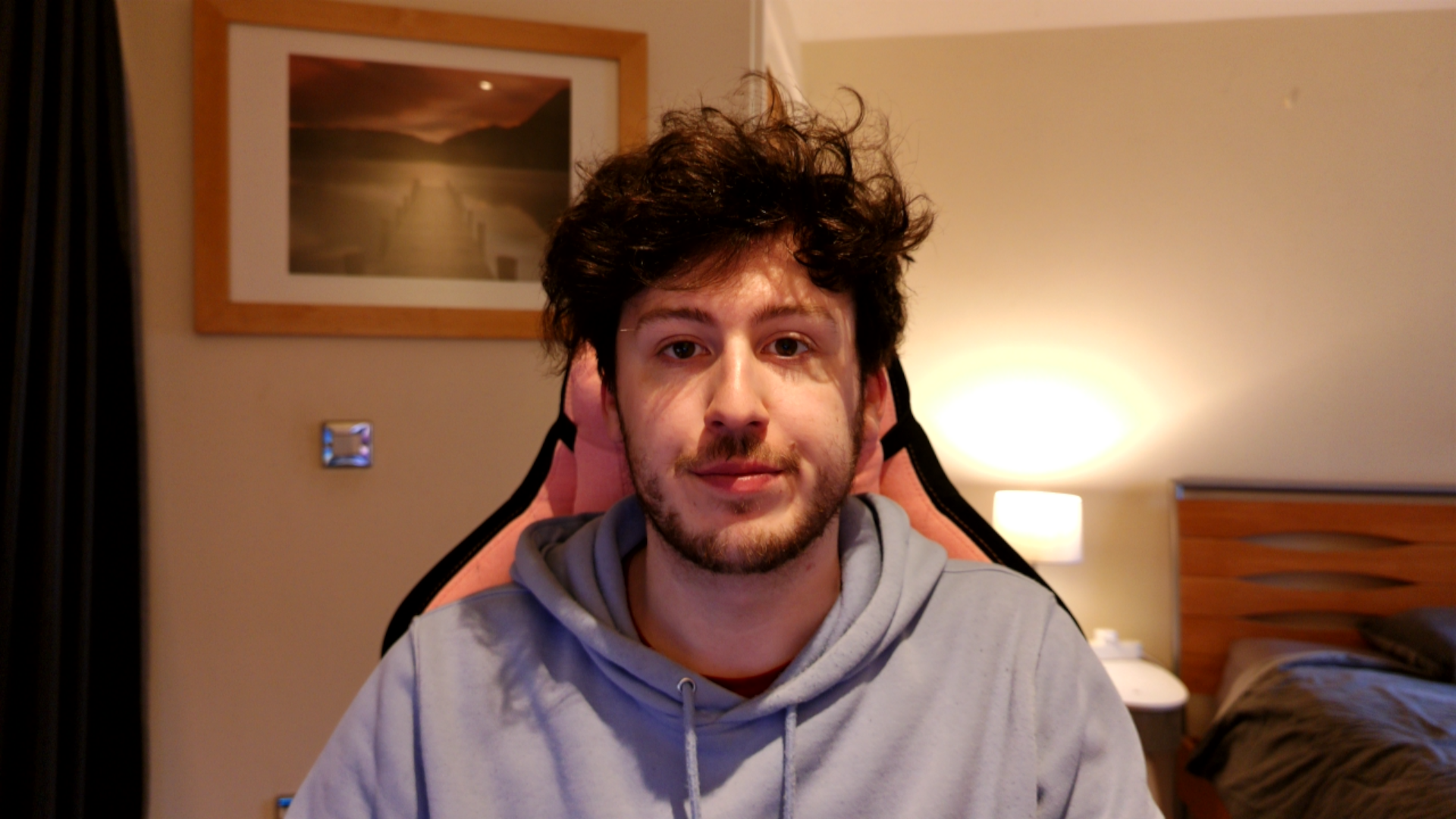
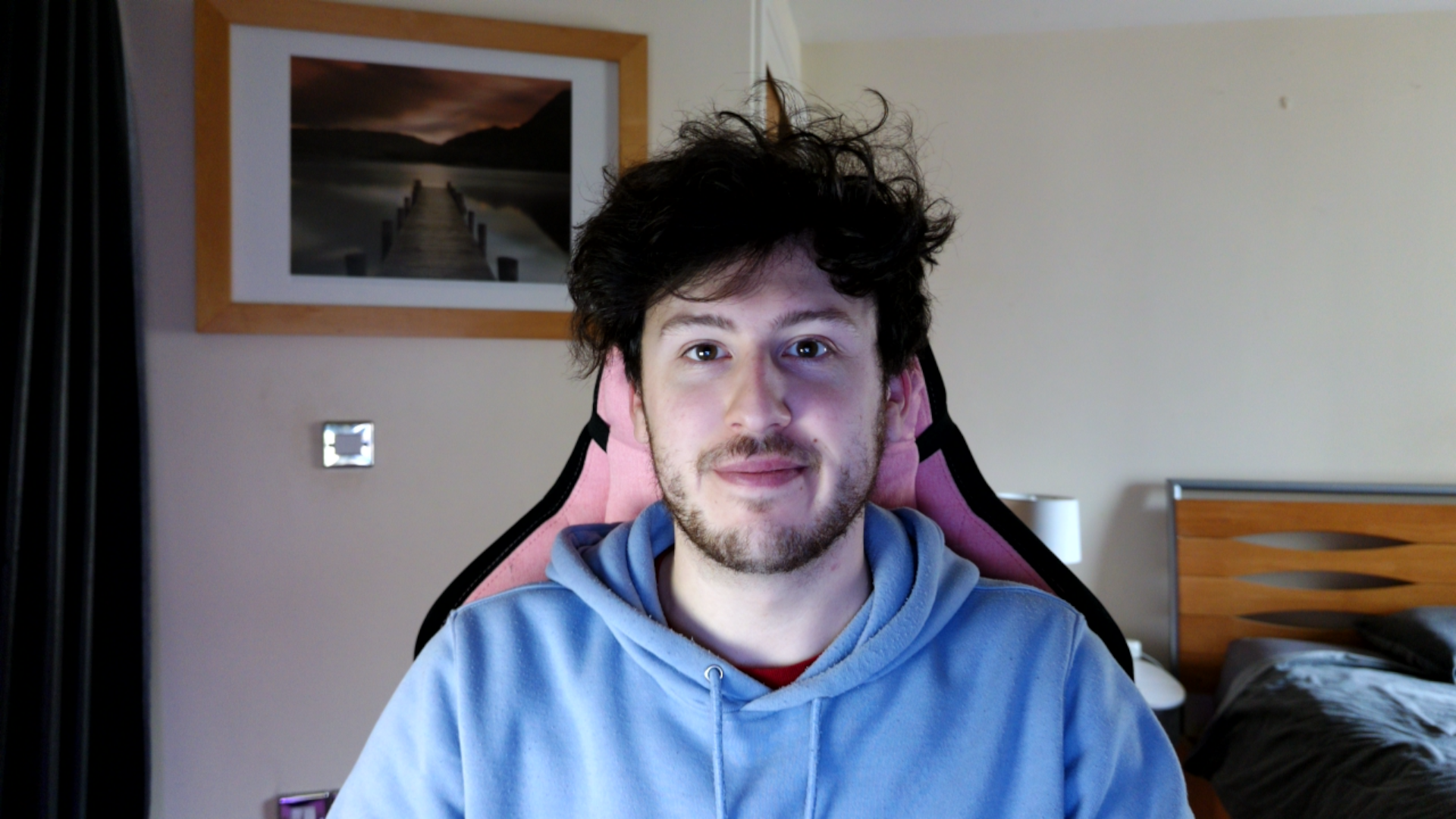
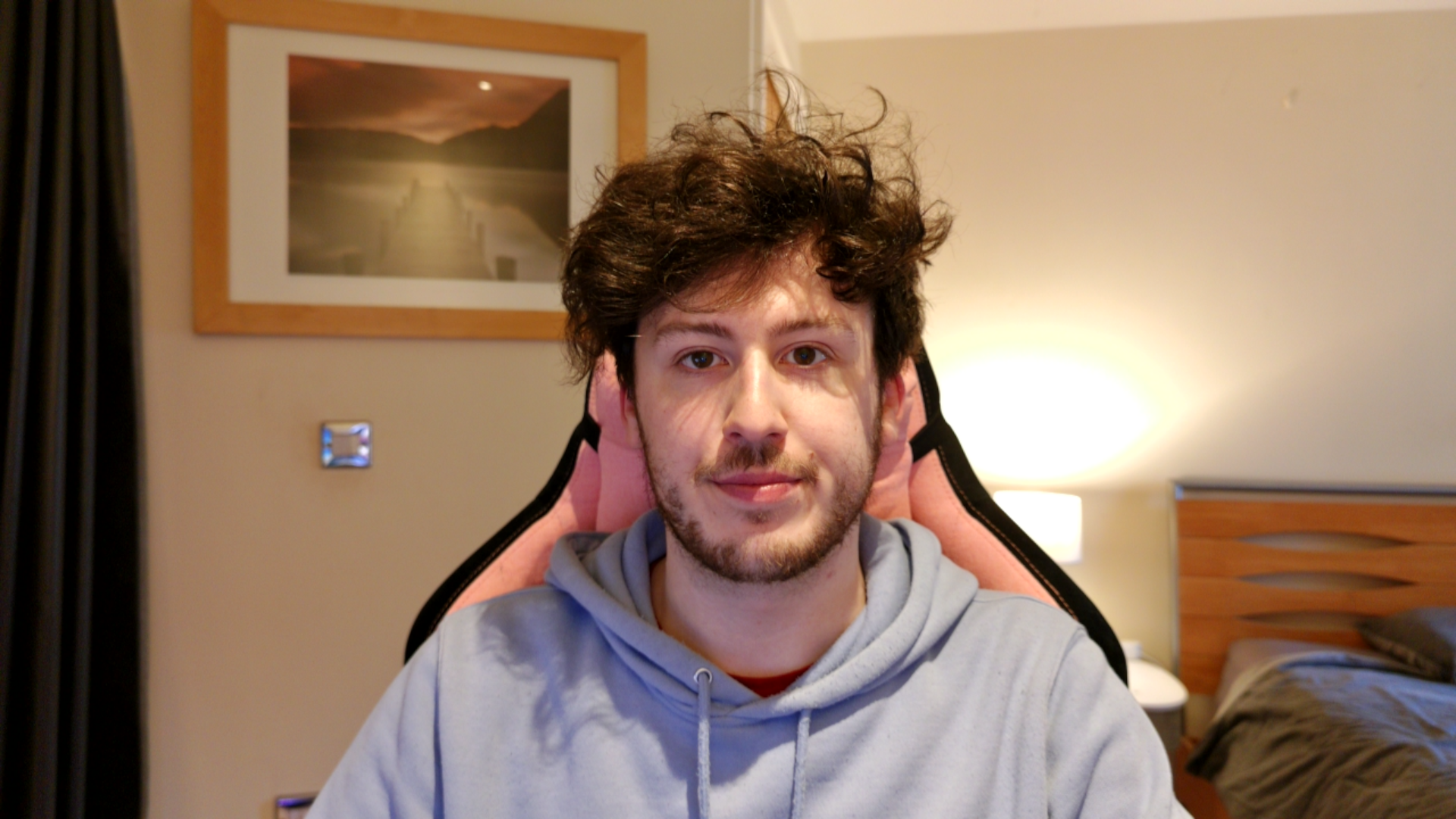
Another key feature of the software is being able to change the camera’s orientation. Now, like I previously mentioned, you physically have to rotate the camera to do this, but you will also have to ensure the setting is correct in the software. So it’s not as simple as just turning the camera on its side.
Throughout my time with the YoloLiv YoloCam S3, I never experienced any issues with the auto-focus or manual focus. For the majority of the time, I just let the little guy do its thing, and it performed well when tracking my face in auto-focus. It was also very quick to focus on any item I brought close to the camera and seamlessly found my face again once the item was removed, never taking longer than a second to re-focus. There is a manual focus option, but I found it a bit difficult to set properly. I recommend sticking to auto-focus where possible.
Thanks to the very large sensor on the YoloCam S3, it never really struggled in lower light settings. I’d never recommend having your space poorly lit when streaming or gaming, but if you do tend to lean into a darker room with RGB in a corner, then this won’t capture a bad image for you. Admittedly, there is some grain and noise, but if you have decent lighting behind the lens, then that won’t be an issue, especially for those sitting close to the webcam. It performs better than some of the other webcams I have tested at this price range, such as the OBSBOT Tiny 2 Lite.
Should you buy the YoloCam S3?

I believe the YoloCam S3 to be one of the best options on the market for anyone looking to invest in a new webcam that forgoes the gimbal gimmicks and instead favours pure image quality. When you factor in price and the fact that it genuinely rivals the more expensive Razer Kiyo Pro Ultra, you’ve got yourself a very compelling device. Coming in at $199/£209, it won’t break the bank but gives you something you’d pay a much higher price for.
It is honestly a fantastic bit of kit for anyone looking to improve their streaming setup, however, if you won’t be using it for producing content, streaming, or podcasting, then you may not need something as pricey or as high-tech. But if you’ve got the cash at hand, why not?
I mentioned earlier that YoloLiv claims that the YoloCam S3 is the “closest you can get to a DSLR,” and after spending some time with it, I think they may be onto something.
How we tested the YoloCam S3?
I spent 3 weeks using the YoloCam S3 as my main streaming, podcasting, and video call camera. I had the webcam routed through its proprietary software when doing so and would then ingest that into OBS, Discord, or WhatsApp. Additionally, I recorded multiple piece-to-camera tests while using the camera.
For more, have a look at the full GamesRadar+ Hardware policy.
For more on content creation gear, take a look at the best microphones for streaming and gaming, the best capture cards, and the best streaming mixers.
You must confirm your public display name before commenting
Please logout and then login again, you will then be prompted to enter your display name.